
Optimize Your Google Business Profile Hours — Boost Local Visibility and Earn Customer Trust
Accurate hours on your Google Business Profile (GBP) are a small detail that drives real results: they determine whether people find you, trust your listing, and actually show up. This guide breaks down what hours do, how Google uses them for real‑time signals like the “open now” badge, and how to keep regular, special, and temporary hours correct across Search and Maps. Outdated or misconfigured hours cost businesses calls, visits, and conversions — here we diagnose common causes and deliver repeatable fixes. You’ll get step‑by‑step update processes, holiday scheduling best practices, temporary‑closure handling, split‑hours and 24/7 guidance, plus an advanced AI‑monitoring approach to cut manual errors. Expect clear checklists and immediate action items to lift impressions, clicks, and customer satisfaction.
How do you update and manage your Google Business Profile hours effectively?
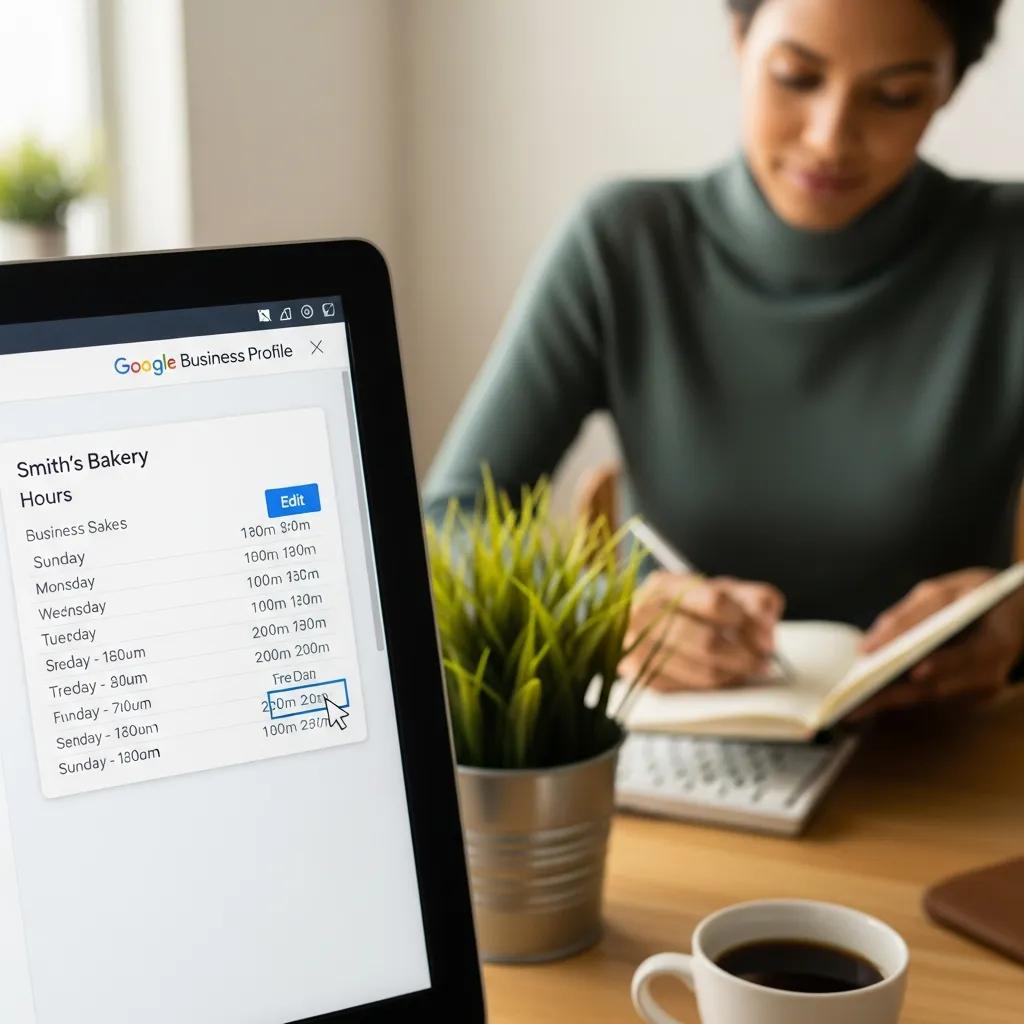
Reliable GBP hours start with a clear weekly schedule, date‑specific special or holiday hours that override the default pattern, and a quick verification step to confirm changes appear in Google Search and Maps. The Hours attribute (dayOfWeek → opens/closes) feeds Google’s real‑time availability signals — this affects badges like “open now” and time‑sensitive local ranking. Consistent, verified hours cut customer friction, increase relevant impressions, and reduce complaints about inaccurate listings. Start in the GBP dashboard to edit Hours, schedule special dates in advance, and use GBP Insights to confirm propagation. Below are concrete steps and a quick reference to make this repeatable for operations teams.
When you update hours, follow these steps to ensure accuracy and traceability:
- Open the Google Business Profile dashboard and choose the location you manage.
- Click “Edit profile,” open the “Hours” section, and set each day’s open and close times.
- Save your edits, then view the public listing in an incognito window or on Google Maps to confirm the display.
- Schedule special or holiday hours under “Special hours” so they properly override regular times.
- Monitor GBP Insights for impressions and queries tied to time‑sensitive searches to confirm expected behavior.
These steps establish a verification workflow that links edits to measurable search outcomes and ties routine updates back to performance monitoring so teams can improve scheduling practices.
Intro to the hour‑types summary table: the table below explains common hour categories, how to set them, where they show to users, and which rules control overrides.
| Hour Type | How to Set | Where Displayed | Override Rules |
|---|---|---|---|
| Regular business hours | Edit Hours in Edit Profile → Hours | Search results and Maps pin | Default schedule; replaced by special hours when set |
| Special / Holiday hours | Schedule under “Special hours” in GBP | Shown prominently on the listing during the date range | Temporarily overrides regular hours for specified dates |
| Temporary closure | Set status to “Temporarily closed” in GBP | Search and Maps show the closed state | Overrides open hours until the status is changed |
| Service‑specific hours | Add hours for services (pickup, delivery, appointments) if available | Displayed under services or attributes | Coexists with general hours; must be managed separately |
What are the steps to update regular business hours on Google Business Profile?
Edit regular hours by defining your weekly pattern in the Hours section and save each change with an audit note. In the GBP dashboard, choose “Edit profile,” find “Hours,” and enter open/close times for each dayOfWeek — keep timezones consistent to avoid display mismatches. After saving, validate the change by searching the business in an incognito window or on Google Maps to confirm the “open/closed” indicator matches your settings; this helps catch caching delays or third‑party overrides. Log the edit internally and, if you manage multiple locations, use bulk tools or a controlled spreadsheet to keep listings consistent. These verification steps reduce incorrect‑hour incidents and give a clear correction path if the public display diverges from the dashboard.
Common pitfalls include daylight saving transitions and multiple managers editing the same profile; addressing these prevents repeat errors. Finally, recheck GBP Insights after 24–48 hours to confirm the update affected impressions and “open now” queries as expected, closing the loop between configuration and performance.
How can you manage special and holiday hours to reflect seasonal changes?

Special and holiday hours are date‑bound overrides you should schedule in the Special hours interface so they temporarily replace regular hours for specific validFrom → validThrough dates. Start by forecasting seasonal dates (federal holidays, local events) and schedule special hours ahead of time instead of editing live to avoid last‑minute mistakes. Use concrete examples — opening later for an event or closing for staff training — and publish a short Google Post explaining the reason so customers see context. After scheduling, verify the override in Google Search snippets and Maps, and confirm regular hours return when the period ends. Proactive scheduling prevents surprise customer experiences and protects your review profile by aligning expectations with reality.
Best practice: maintain a calendar of recurring special hours and assign one owner to approve and publish them. That governance prevents overlaps across multi‑location profiles and ties back to monitoring metrics that show whether the change influenced local search traffic.
Why are accurate Google Business Profile hours critical for local SEO and customer trust?
Accurate GBP hours matter because Google uses hour attributes to adjust time‑sensitive search results, and customers rely on visible hours when deciding to visit or call. Precise hours boost local search relevancy by enabling “open now” prominence for time‑of‑day queries and by narrowing the gap between expectation and reality. From a trust perspective, consistent hours cut friction, lower complaint reviews, and improve conversion rates (clicks‑to‑call and directions). Hour data also interacts with categories, services, and posts to present a coherent listing that performs better for relevant queries. In short: managing hours is both an operational and an SEO priority.
A recent study highlights how maintaining a complete Google Business Profile supports local discoverability and customer trust.
Google Business Profile: Local Visibility and Customer Trust
This study examines how updated Google Business Profiles help businesses appear in local search results and connect with customers. It reviews how clear information — location, contact details, hours, website, reviews, and images — shapes consumer choices and improves visibility on Google Maps and local search. Findings show businesses with complete, regularly updated profiles attract more customers, receive better feedback, and earn greater trust.
A Study on the Impact of Google Business Profile on Business Success, B. Sharma, 2025
Key ways accurate hours influence search and user behavior:
- Precise hours increase the chance of ranking for time‑sensitive queries and showing the “open now” badge.
- Up‑to‑date hours reduce negative reviews from customers who arrive outside actual operating times.
- Consistent hour data across GBP, citations, and your website lowers confusion and improves conversion metrics.
These points show hours act as both ranking and trust signals — managing them aligns operational reality with search visibility.
How do business hours influence local search rankings and "open now" visibility?
Hours supply real‑time availability into Google’s local algorithm, and Google often favors listings that are open when a user searches for immediate service. When your opens/closes attributes match customer intent, impressions and clicks can increase. GBP Insights can reveal spikes in calls and direction requests tied to “open now” visibility, helping quantify the effect. Track impressions for time‑bound queries and compare before/after updates to isolate the impact of corrected hours. Keeping hours synchronized across platforms prevents contradictory signals that can confuse Google about your availability.
Treat hours as dynamic metadata: after optimizing them, monitor short‑term KPIs to confirm whether “open now” exposure yields immediate customer actions, then iterate on schedules based on observed demand patterns.
What is the impact of incorrect hours on customer experience and reviews?
Incorrect GBP hours cause predictable frustration: wasted trips, unanswered calls, and reviews that complain about misinformation rather than the service. Customers expect hours to be reliable; when they aren’t, star ratings and click‑through rates suffer. Common review themes include “store closed,” “hours inaccurate,” and “misleading listing” — all of which harm reputation and conversion. Prevent these issues with routine verification, monitoring third‑party citations that may overwrite your data, and a fast correction workflow that includes a Google Post and website update. Quick, transparent fixes — acknowledge the error and clarify reopening details — can reduce reputational damage and preserve trust.
Treat incorrect hours as an operational risk and track hour‑related review incidents as a KPI for listing hygiene and customer experience.
What are best practices for handling temporary closures and reopenings on your Google Business Profile?
Handle temporary closures and reopenings with a clear decision framework: mark “Temporarily closed” when you can’t serve customers, and use special hours when limited services remain available. “Temporarily closed” updates the GBP status so Google won’t show an “open now” badge. To reopen, reverse the temporary status and double‑check hours and service attributes so Google reindexes correctly. Communicate changes via Google Posts, website banners, and Q&A updates to keep customers and staff informed. Below are operational checklists and templates to keep temporary changes clear, timely, and SEO‑friendly.
- Set status to “Temporarily closed” in GBP if the location cannot serve customers at all.
- Publish a Google Post and add a website banner explaining the reason and expected reopen date.
- Update special or regular hours before reopening and verify the public display.
- Use Q&A and review responses to address concerns and confirm reopening plans.
Use the temporary‑closure reference table below to compare options and outcomes for governance clarity.
| Action | When to Use | Immediate Effect | Suggested Follow‑up |
|---|---|---|---|
| Mark “Temporarily closed” | Full service suspension | Listing shows closed until reopened | Publish posts and plan reopening steps |
| Use special hours | Limited or modified services on specific dates | Overrides regular hours for chosen dates | Notify customers via posts and update services |
| Leave hours blank | Short‑term uncertainty (not recommended) | Increases customer confusion | Prefer explicit temporary closure or special hours |
| Post reopening update | When reopening | Signals availability to users | Verify hours and monitor impressions after reopening |
How to mark your business as temporarily closed and communicate reopenings?
To mark a temporary closure, open the GBP dashboard, set status to “Temporarily closed,” and save. Then publish a short public update explaining the reason and an estimated reopen date. Confirm internal stakeholders agree on timing, and log the change so you can reverse it when ready. Example Google Post: “We are temporarily closed due to [reason]. We expect to reopen on [date]. Check back for updates.” After reopening, remove the closure status, confirm regular hours, and publish a reopening post that thanks customers and highlights any service changes. This workflow reduces confusion and helps recover impressions and customer actions quickly.
Always verify reopening by searching your listing in Maps and confirming phone and directions are active — that confirms Google updated the public status.
How to address unexpected closures and maintain customer engagement?
Unexpected closures need an emergency communications protocol: update GBP status quickly, publish a concise post explaining the closure, set autoresponders on primary contact channels if possible, and add a website banner for direct visitors. Start by marking “Temporarily closed” or scheduling special hours if limited services continue, then send outbound messages via social and on‑site notices to manage expectations. Use automated monitoring and alerts to detect third‑party edits or status mismatches so teams can act fast. Quick message templates should be factual, short, and include an ETA or promise to follow up — that preserves trust even during disruption.
Create a monitoring loop where an assigned owner checks the public display every few hours during an incident to keep the listing accurate and limit reputational impact.
How can advanced strategies like split hours and 24/7 operations optimize your Google Business Profile?
Advanced hour strategies — split hours, 24/7 designation, and service‑specific schedules — let you mirror real‑world availability and unlock search opportunities when used correctly. Split hours suit businesses with mid‑day breaks (restaurants that close between lunch and dinner); they show precise availability but can confuse customers if not clearly communicated. Declaring 24/7 helps emergency or continuous support services, but only use it if you truly operate nonstop — otherwise user behavior can send negative signals. Service‑specific hours (pickup, delivery, appointments) target intent‑driven queries and can improve conversion for those use cases. Use a simple decision framework to choose the right approach based on your model and customer intent.
Quick comparison of advanced strategies — pros and cons:
- Split hours: precise for staggered shifts, but may confuse customers without clear notices.
- 24/7 hours: better visibility for always‑open services, but only if uptime matches the claim.
- Service‑specific hours: targets intent‑matched queries (pickup/delivery) and reduces no‑shows.
Measure each choice against KPIs like direction requests, calls, and time‑specific impressions to find the best fit.
Implementation comparison table below maps each option to pros, cons, and practical notes.
| Approach | Use Case | Pros | Cons | Implementation Notes |
|---|---|---|---|---|
| Split hours | Midday closures or staggered shifts | Reflects true availability; precise UX | May confuse customers if not explained | Announce via posts and website; monitor display |
| 24/7 designation | Emergency or continuous support services | Better rank for 24/7 queries | Risk of negative signals if inaccurate | Confirm monitoring and staffing before declaring |
| Service‑specific hours | Pickup, delivery, appointment windows | Targets intent‑driven searches; reduces confusion | Needs separate upkeep per service | Use service listings and schema for clarity |
What are the benefits and challenges of implementing split hours for your business?
Split hours let you show non‑contiguous open periods (for example, closing between lunch and dinner), which improves availability accuracy for customers searching specific windows. That accuracy can boost conversions for meal periods or appointment blocks. Challenges include confusing customers if split hours are uncommon locally or if third‑party platforms show hours differently. To implement, add multiple time ranges for the same day in GBP Hours and announce the pattern via posts and your website. Monitor propagation and track time‑segmented KPIs to see whether split hours deliver measurable gains.
A simple monitoring plan — check the public display after publishing and track direction requests by hour — completes the loop and shows whether split hours are worth keeping.
When and how should you use 24/7 hours on Google Business Profile?
Only declare 24/7 when you truly provide continuous service; Google and users treat that as a promise of immediate access. Before setting 24/7, confirm staffing or automated support, ensure phone/chat systems handle off‑hours, and plan to monitor user behavior for negative signals. Implementation is straightforward: set continuous open hours in GBP and update relevant service attributes (support, emergency). Alternatives include extended hours or a clearly labeled after‑hours support line if you can’t support full 24/7. Regular audits of hours and interactions confirm your listing matches real user experience and search performance.
Track late‑night direction requests and after‑hours calls to evaluate whether a 24/7 listing drives real demand or simply increases visibility without conversions.
How does DockSyde Creative’s AI‑powered solution enhance Google Business Profile hours management?
DockSyde Creative is a digital marketing agency that specializes in Google Business Profile optimization, citation and review management, and automated monitoring. Our core services — AI‑powered optimization, local visibility expertise, and smarter customer engagement — form a managed workflow that reduces manual errors, predicts optimal hours from local demand signals, and alerts teams to anomalies. For multi‑location businesses or frequent schedule changes, AI monitoring surfaces mismatches between dashboard settings and public display, recommends corrective edits, and produces reports that tie hour changes to local search outcomes.
The EAV table below links DockSyde Creative’s AI features to clear benefits and measurable metrics, showing how automation reduces the main risks of hour mismanagement.
| Feature | Attribute | Benefit / Metric |
|---|---|---|
| Predictive scheduling | Suggests optimal hours from demand data | Higher relevant impressions and clicks |
| Automated monitoring | Real‑time anomaly detection | Faster correction of incorrect hours; fewer negative reviews |
| Bulk management | Bulk edits for multi‑location profiles | Consistent listings; lower manual workload |
| Alerting and reporting | Email or dashboard alerts (configurable) | Reduced propagation delays; measurable time savings |
What are the features of AI‑driven predictive hour optimization and automated monitoring?
AI‑driven predictive optimization analyzes historical search patterns, local events, and GBP Insights to suggest hour changes that match demand, while automated monitoring checks the public listing for discrepancies. Typical flows are detect → suggest → apply → verify: anomalies trigger alerts, suggested edits are reviewed, changes can be applied in bulk when appropriate, and verification confirms the public display matches the dashboard. This shortens the window between a schedule change need and the public update, minimizing incorrect‑hour exposure. Integrations commonly include GBP editing APIs, internal dashboards, and reporting modules that measure downstream impact on impressions, calls, and directions.
Useful success metrics include fewer hour‑related review mentions, more “open now” impressions during peak times, and fewer manual edits per month — all signs that AI helps move work from reactive to proactive.
How does AI automation improve accuracy and local SEO performance?
AI improves accuracy by spotting dashboard vs. public listing mismatches faster than periodic manual checks and by recommending schedule adjustments based on observed customer behavior. The cause→effect chain is simple: faster detection reduces incorrect‑hour incidents, which reduces negative reviews and builds user trust; that trust plus accurate “open now” signals leads to better time‑sensitive local search performance. Recommended KPIs include reductions in hour‑related complaints, lifts in time‑specific impressions, and improved calls/directions per impression ratios. Closing the detection→verification loop shortens resolution times and stabilizes listing accuracy, which cumulatively increases local visibility.
If you want help, DockSyde Creative offers AI‑powered GBP optimization and monitoring as a managed solution to lower manual overhead and improve local search outcomes through predictive scheduling and automated verification.
Frequently Asked Questions
What are the consequences of not updating Google Business Profile hours regularly?
Ignoring GBP hours costs visits, calls, and customer trust. Incorrect hours lead to frustrated customers, wasted trips, and negative reviews — all of which hurt conversion and can reduce local search performance. Keeping hours current preserves customer satisfaction and keeps your listing competitive in local searches.
How can I effectively communicate temporary closures to my customers?
Use multiple channels. First, mark your profile “Temporarily closed” in GBP. Publish a Google Post with the reason and expected reopen date, add a website banner, and post updates on social. Consider an autoresponder on email and phone lines. Clear, timely messages keep customers informed and protect your reputation.
What tools can help automate the management of Google Business Profile hours?
AI‑powered monitoring tools (including DockSyde Creative’s solution) can detect discrepancies between your dashboard and public listing, suggest optimal hours from demand data, and send alerts for anomalies. Bulk management features make multi‑location updates faster and more consistent. These tools cut manual work and improve accuracy.
How do I handle customer inquiries about my business hours during a temporary closure?
Set up autoresponders on email and phone to explain the closure and give an estimated reopening date. Update GBP and your website, and use social channels to answer common questions. Quick, transparent replies help customers feel informed and valued.
What are the best practices for managing split hours on my Google Business Profile?
Set multiple time ranges for the same day in GBP and clearly communicate the pattern via Google Posts and your website. Monitor the public display and track customer interactions during those hours. Clear communication prevents confusion and ensures customers know when you’re actually open.
How can I measure the impact of my Google Business Profile hours on customer engagement?
Use GBP Insights to track impressions, clicks, calls, and directions. Look for spikes at specific hours after changes and correlate those with reviews or customer feedback. Combining these signals shows whether hour updates are driving more engagement and helps you fine‑tune schedules.